What are passkeys on WhatsApp and how to set them up
WhatsApp supports passkeys as a secure alternative to SMS verification codes. You can use a passkey to log into your account quickly and securely, without waiting for the 6-digit code. Here you can learn more about how they work and how to set them up on your device.
What is a passkey on WhatsApp?
A passkey is a secure method to protect your WhatsApp account. It is available for both Android and iOS, and it brings a new layer of security to the login experience. Unlike traditional passwords or SMS-based verification codes, passkeys use advanced cryptography and your device's built-in security features (like your fingerprint, face, or screen lock) to verify your identity. This means that only you, with your physical device and personal biometric data, can access your account.
Benefits of using a passkey
- Stronger security: passkeys are more secure than passwords or SMS codes, and they can help you protect your account from unauthorized access.
- Convenience: logging in is faster and easier. You don't need to wait for the verification code, as you can just use your device's security feature, like when you unlock your phone.
- Privacy: your biometric data, such as your fingerprint or face, never leaves your device.
How do passkeys work on WhatsApp?
When you set up a passkey, WhatsApp links your account to your device's security system, including fingerprint, face, or screen lock. The next time you need to verify your identity, you can use your passkey instead of the 6-digit code. For example, this applies when you want to register your phone number or restore your account.
Requirements
To create a passkey, your device must meet these requirements:
- Android: Android 9 or later, with a password manager account set up and linked to your device (such as a Google account in Google Password Manager or a Samsung account in Samsung Password Manager), a lock screen set up, and Password Manager enabled. You can check this in your device Settings > Passwords > Passkeys & accounts.
- iPhone: iPhone 8 or newer with iOS 16 or later, and a lock screen set up.
How to create a passkey on WhatsApp
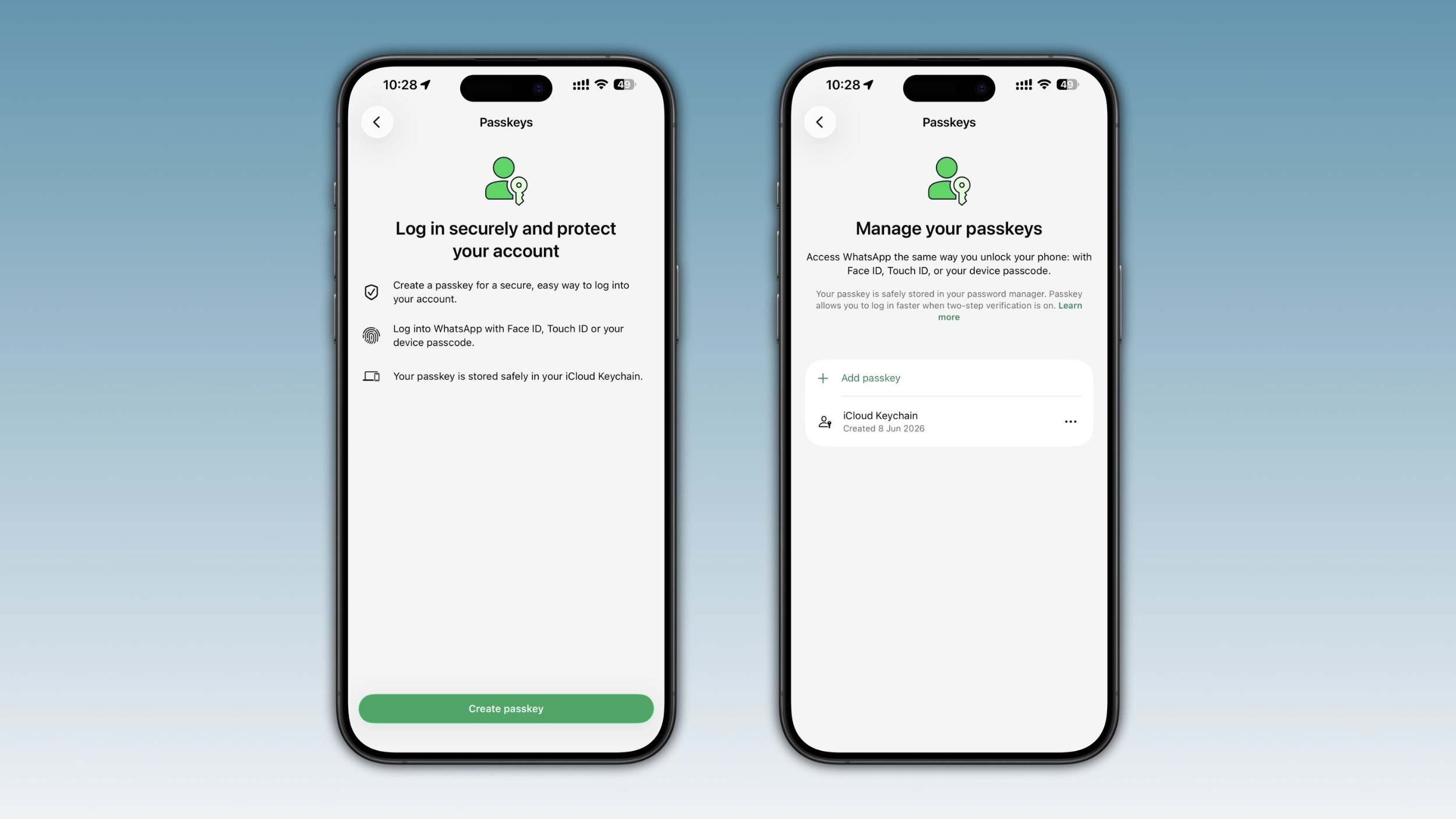
- Open WhatsApp and tap Settings
- Tap Account > Passkeys > Create passkey > Continue
- Tap Continue (you may be asked to tap Use screen lock to create your passkey)
- WhatsApp will save the passkey in the default Password Manager app
Note: if you are reinstalling WhatsApp and you have previously created a passkey, you might be asked if you want to use it at registration. If you want to change your passkey, you will need to delete the current passkey and create a new one.
How to delete a passkey on WhatsApp
- Open WhatsApp and tap Settings
- Tap Account > Passkeys
- Tap Delete > Delete
Is it worth setting up a passkey?
Although passkeys are not mandatory, setting one up is always a good idea. There may be situations where the user may be unable to receive the 6-digit code. For example, when traveling internationally or dealing with carrier issues. In these cases, having a passkey already set up allows you to access your account, so you will never be locked out of your account.
Connect with WABetaInfo
Follow WABetaInfo on X and visit our About page to learn more about what we do. We always appreciate your feedback on posts like this one.
Source link