
![These are the best iPadOS 27 features you should try [Video]](https://startupnews-media-2026.s3.us-east-1.amazonaws.com/startupnews-in/uploads/2026/06/rss-mqgx3lau-kbmkts-2.jpg?X-Amz-Algorithm=AWS4-HMAC-SHA256&X-Amz-Content-Sha256=UNSIGNED-PAYLOAD&X-Amz-Credential=AKIAZQ3DRHCSCL44VIMT%2F20260616%2Fus-east-1%2Fs3%2Faws4_request&X-Amz-Date=20260616T191636Z&X-Amz-Expires=604800&X-Amz-Signature=a0e1fe73f35a4d4c9ef1a62b98e41e4bb3a4d8a9d643923d9f70d0692e98c4b9&X-Amz-SignedHeaders=host&x-amz-checksum-mode=ENABLED&x-id=GetObject)
These are the best iPadOS 27 features you should try [Video]
 | Jun 16 2026 - 10:09 am PT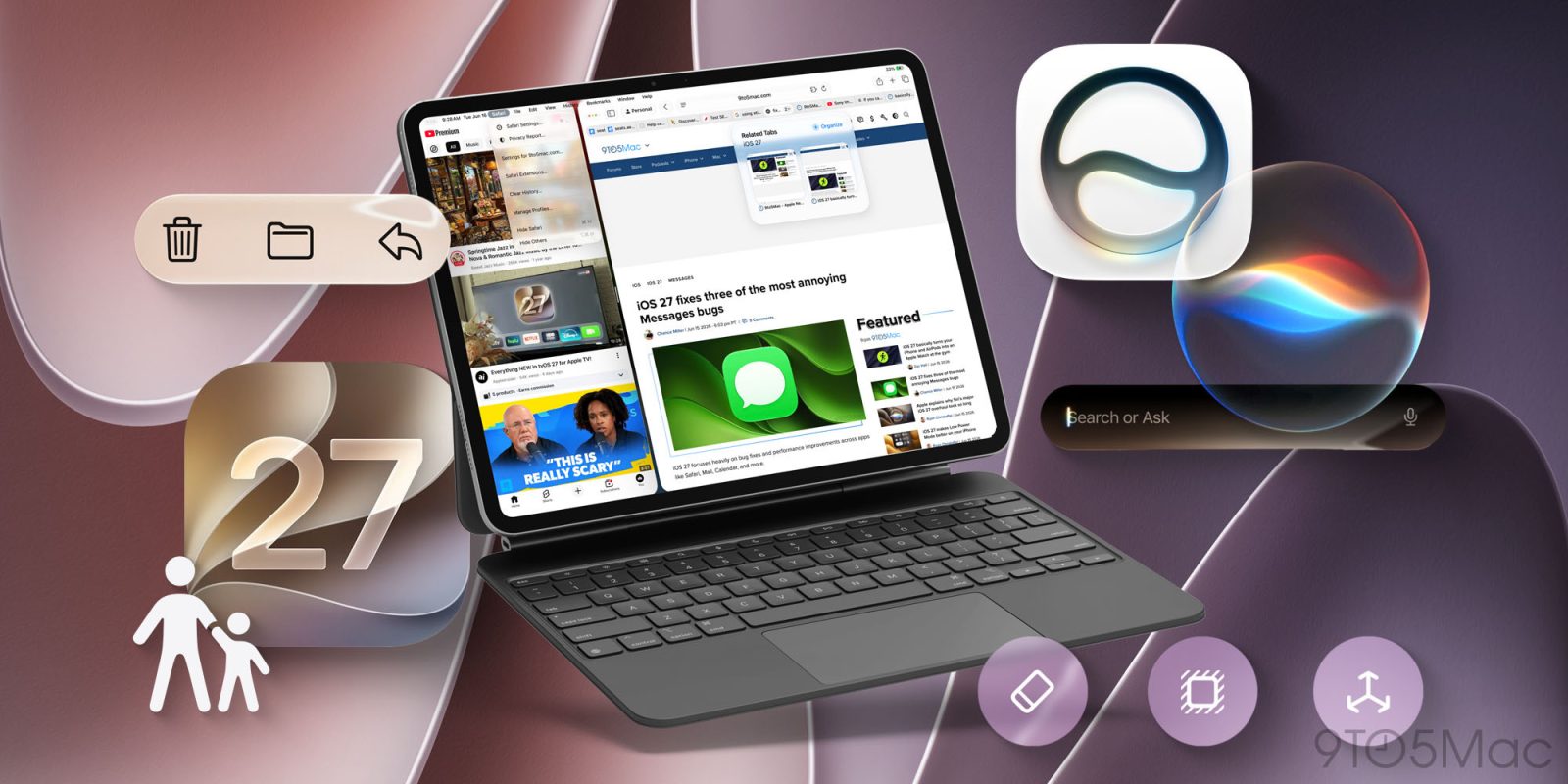
Last year, Apple blew me away with the new multitasking features in iPadOS 26. It felt like a true step forward, giving us a more Mac-like experience. This year, iPadOS 27 aimed to tighten everything up and give us the best version of iPadOS we have ever seen. The update might not have been as flashy as last year’s, but it has made my iPad smarter, faster, more capable, and the performance now feels drastically improved. There are 100s of new small tweaks and changes, but I wanted to share my five favorite features you need to try.
Be sure to check out our hands-on look at iPadOS 27 on the M4 iPad Pro. You really get to see the power of what makes it special!
1. Magic Keyboard shortcut and automation trigger
The one stole the show for me. iPadOS 27 now lets you use the action of removing and placing your iPad on a Magic Keyboard to trigger an automation or launch a shortcut. What is great is that it is super easy to set up and so customizable. All you do is:
- Open Shortcuts app
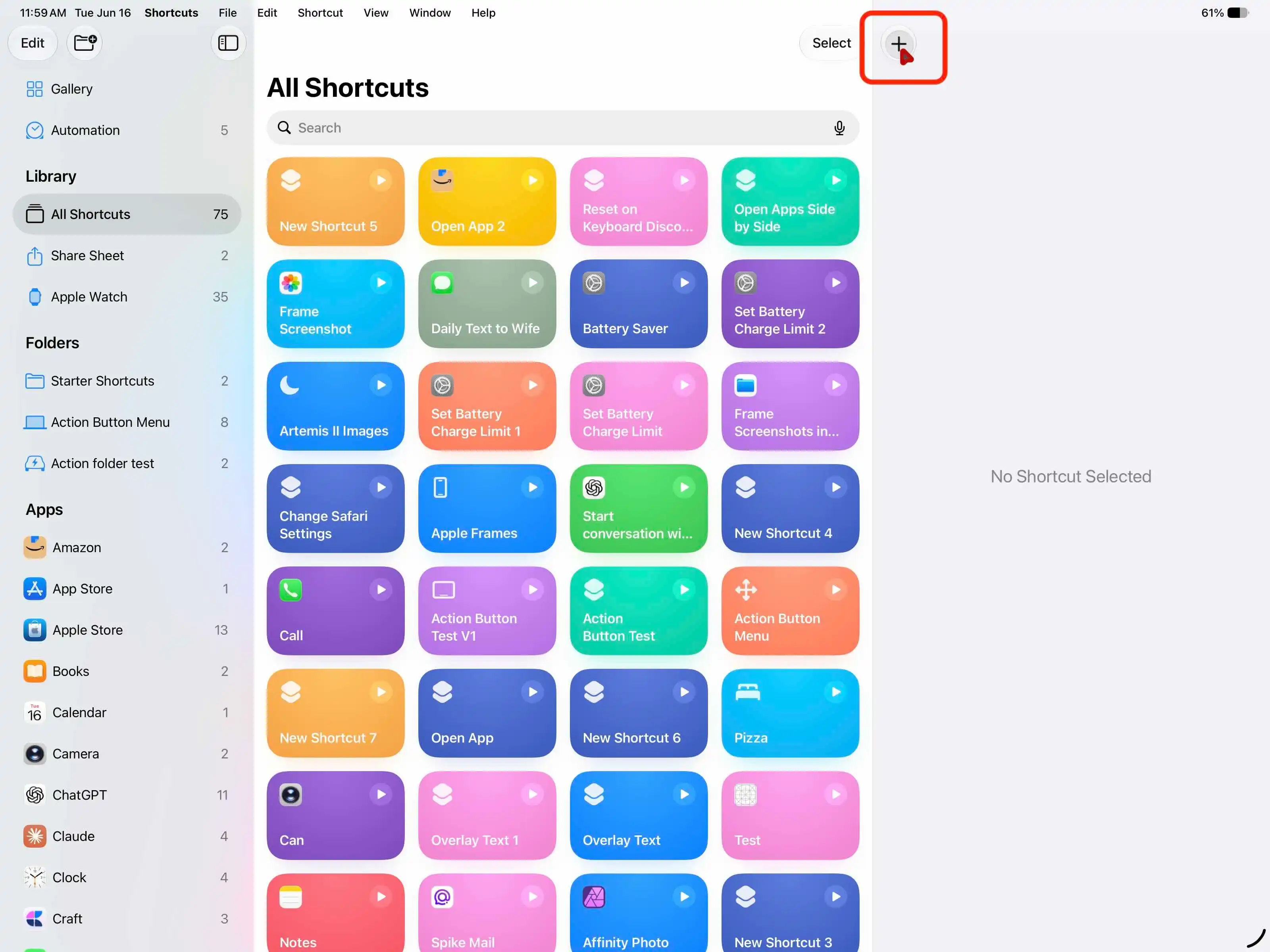
- Create a new shortcut
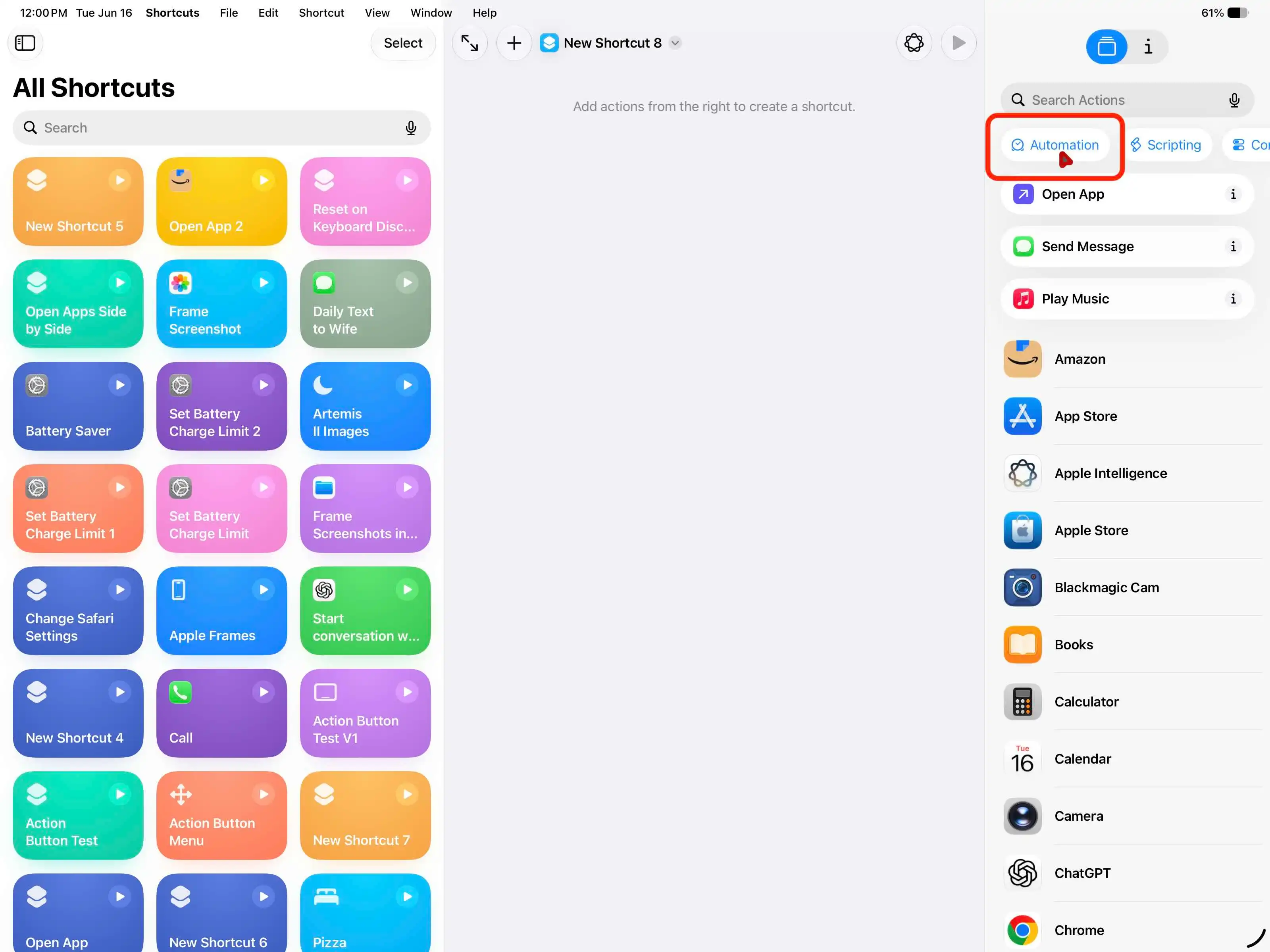
- Tap automation
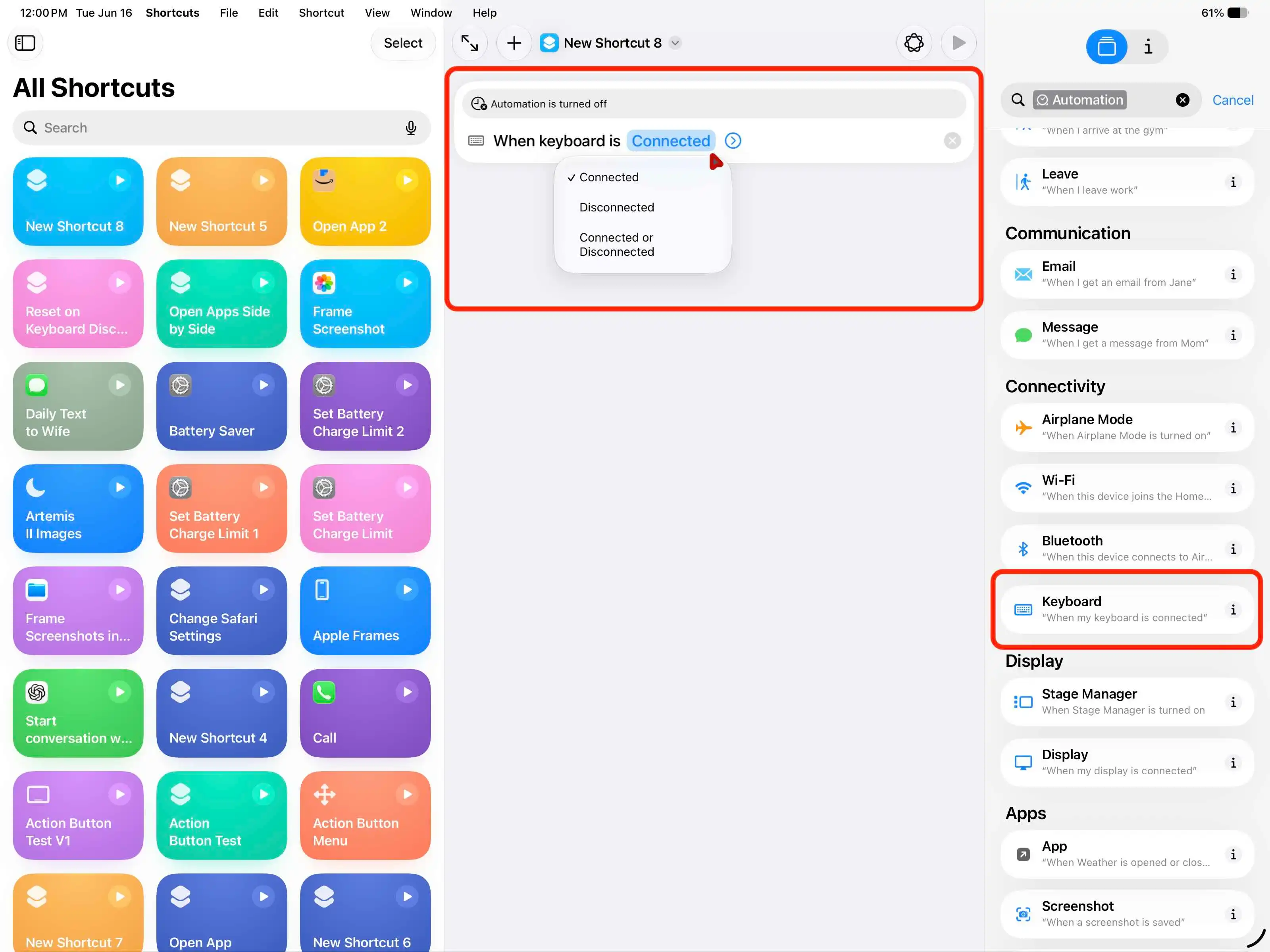
- Scroll down to the keyboard option
- Choose if you want the action to occur when connecting or disconnecting
- And then the sky is the limit from there
I have it set up so that when I connect the Magic Keyboard, the YouTube App opens on the left, and Safari opens on the right in windowed mode. It launches in about a second and works great. Then, when I remove the iPad, it closes all apps, takes me to the home screen, and turns off windowed mode because I will more than likely be viewing content when I remove the iPad. Let me know what you think you would do with this new trigger point!
2. Natural language Shortcuts
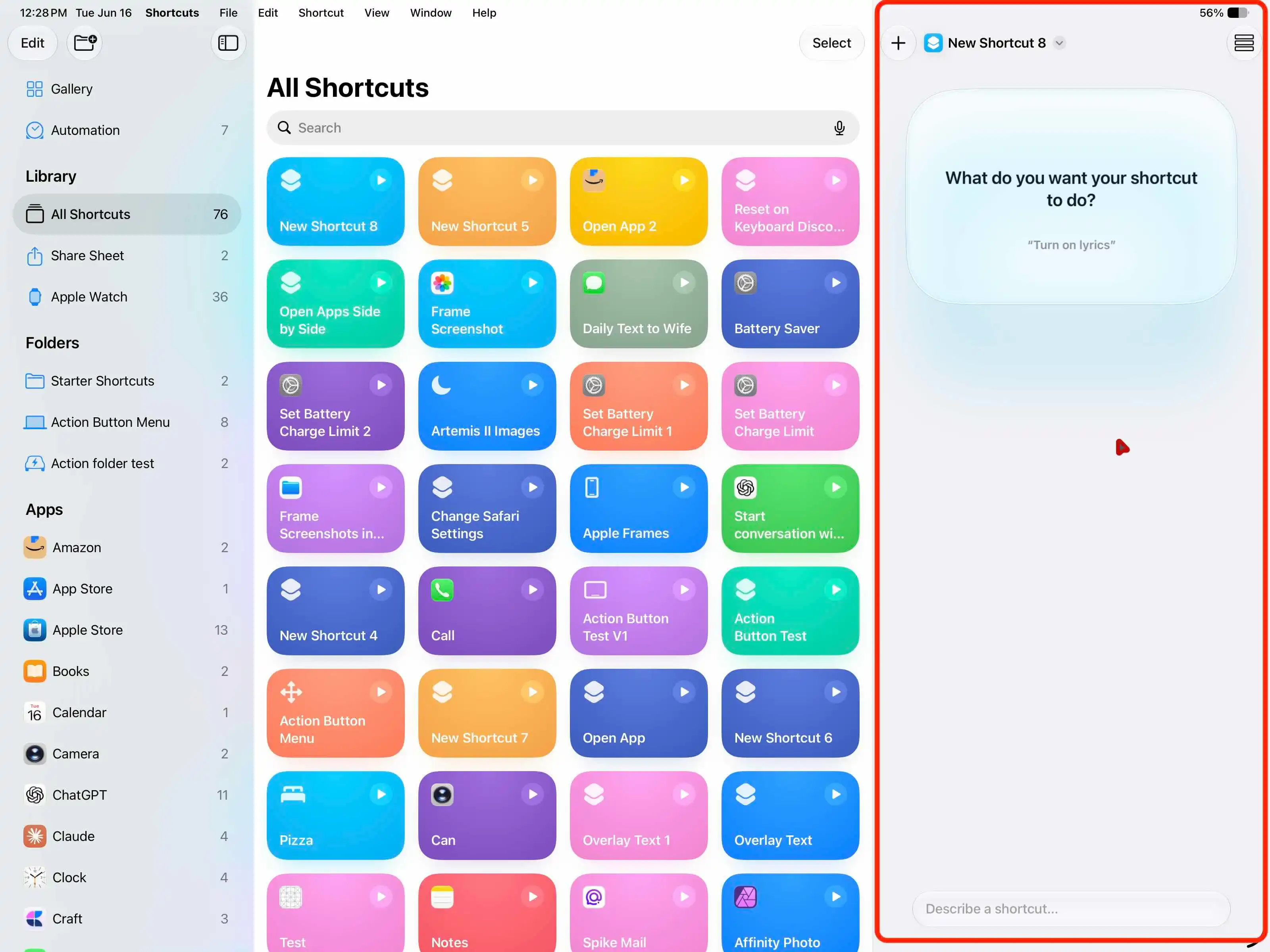
This one is a big deal. The Shortcuts app has always been a bit intimidating to me. Aside from a few one-step shortcuts, I avoided it. But I have seen people harness the power of Shortcuts over the years, and you can do some insanely powerful things on there. With iPadOS 27, Apple has removed that barrier by letting you use natural language to describe a shortcut and then the app will just create it for you! The keyboard shortcut I mentioned in the first section, I created it with a natural language prompt. All I said was:
Make a shortcut that, when I place my iPad on my Magic Keyboard, turns on windowed mode and opens YouTube and Safari side by side.
Not only does it create the shortcut, but it also lets you view the back end and see how it was created. So not only does it give you the answer, but it also shows you all the work you need to see. I’ve created a few shortcuts and automations that range from something simple, like texting my wife at noon every day, to creating scene automations triggered by certain actions in my office. Again, this is one of those things you need to try yourself and see exactly what you can make that will be useful to you.
You can tell Apple wants you to use it because when you go to create a new shortcut, you are greeted with the natural language input method instead of the traditional shortcut creation method.
3. Safari smart tab organization
This is an awesome and underrated feature of iPadOS 27. Safari can now automatically organize tabs based on the topic of each webpage. As someone who always has 15+ tabs open, this is such a game-changer. Here is how to set it up:
- Open Safari
- Go to Tab Overview
- Tap the three dots
- Go to the Organize tabs
- Select Automatically create topics
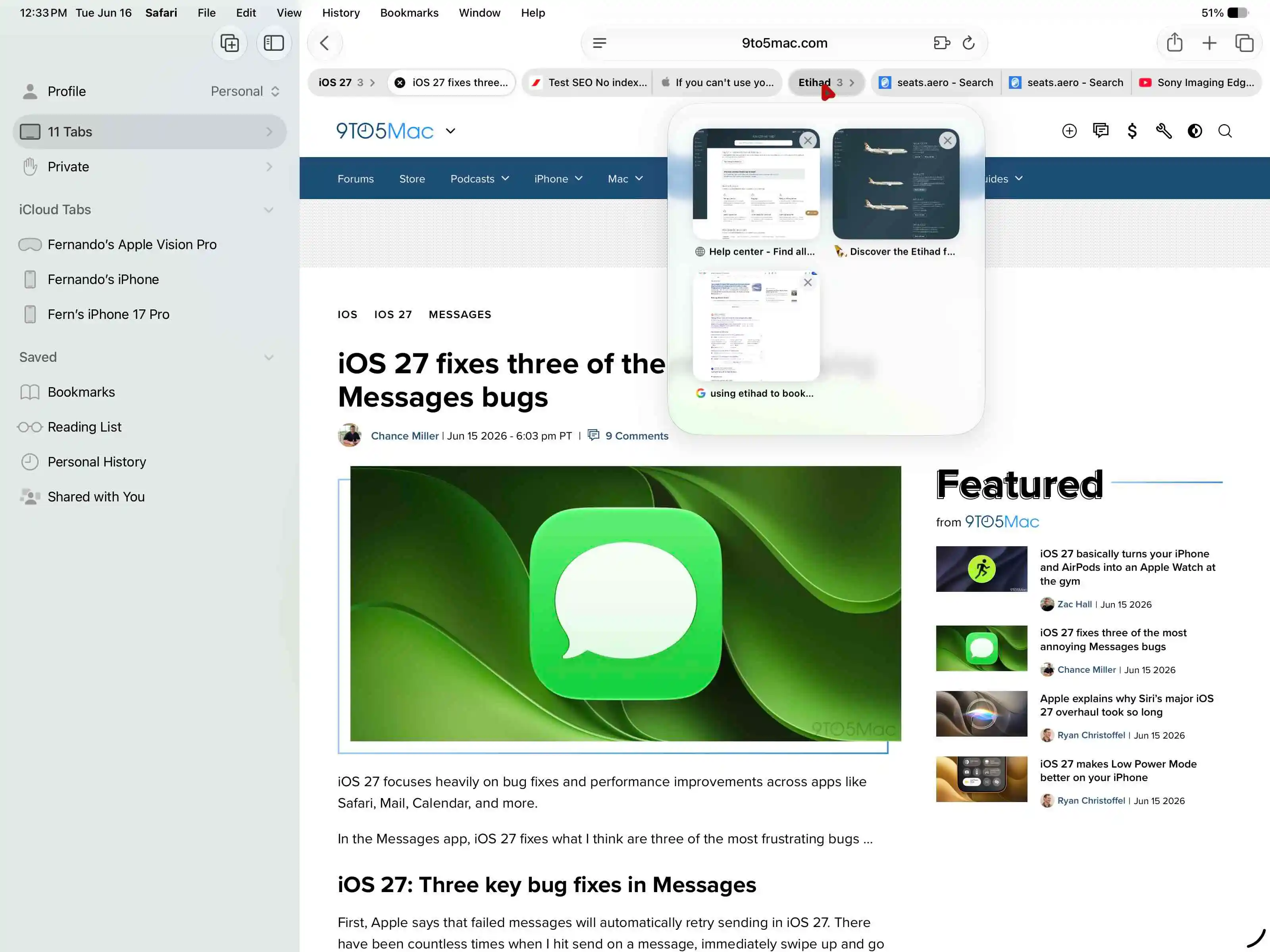
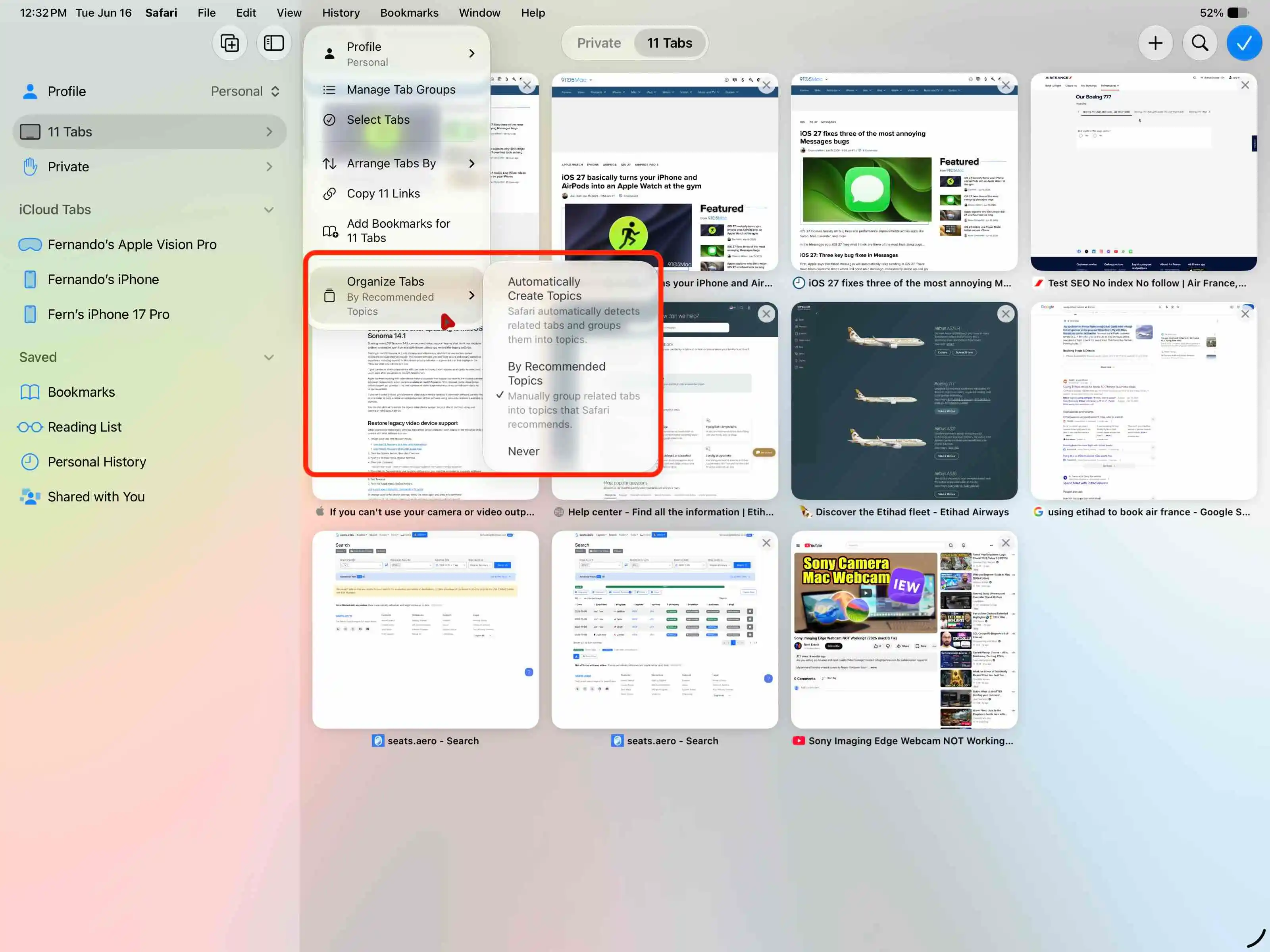
Safari will then use SiriAI to organize those tabs into related groups. This works well if you have tabs from the same website or that are generally related to each other. So I have a bunch of tabs open for 9to5Mac, some tabs about travel research, and some tabs about Sony camera troubleshooting. This feature just helps declutter a normally very cluttered area of your iPad.
4. More desktop class features
Apple has made a lot of smaller enhancements that collectively make the iPad feel even more like a desktop OS. They gave us faster window management and improved external display features, resulting in a much more polished experience. Some new features include:
- Faster window switching
- Faster window closing
- Faster menu bar access
- Optional persistent menu bar
- Control Center support on external displays
- Faster file transfers and browsing
- Improved overall responsiveness
On their own, these features are not flashy, but when you add them up, they really change the day-to-day experience of using your iPad. Especially if you are someone who has wanted their iPad to be more and more like a regular computer. I also paired this with the 5K BenQ monitor, and it looks amazing!
5. SiriAI Search
One of the best things that has come with SiriAI is the indexing. When you first update to iPadOS 27, your device will be indexing for days or weeks. The indexing helps Siri get context more easily whenever needed. So the more you have, the longer it will take. But a byproduct of all this indexing is that Siri search is light-years better than it was just a few weeks ago. Not only is it powerful, but it’s also so easy to access because Apple combined Spotlight Search and Siri AI into one powerful feature. All you need to do is:
- Swipe down to access Search
- Type in natural language
- It then searches files, messages, apps, emails, or settings to find what you need
- Then it gives you contextual results of what you were looking for, with sources of where it was found
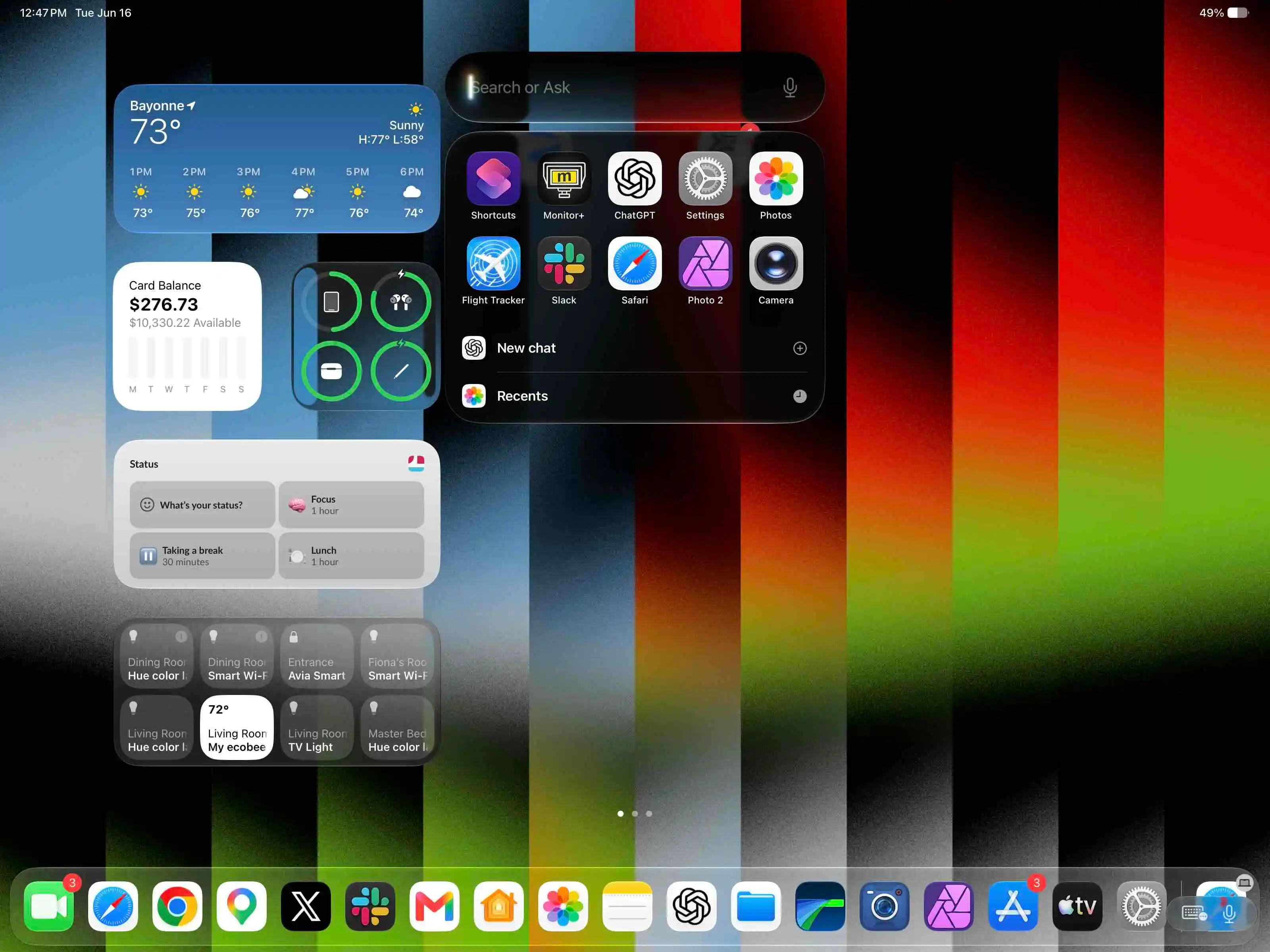
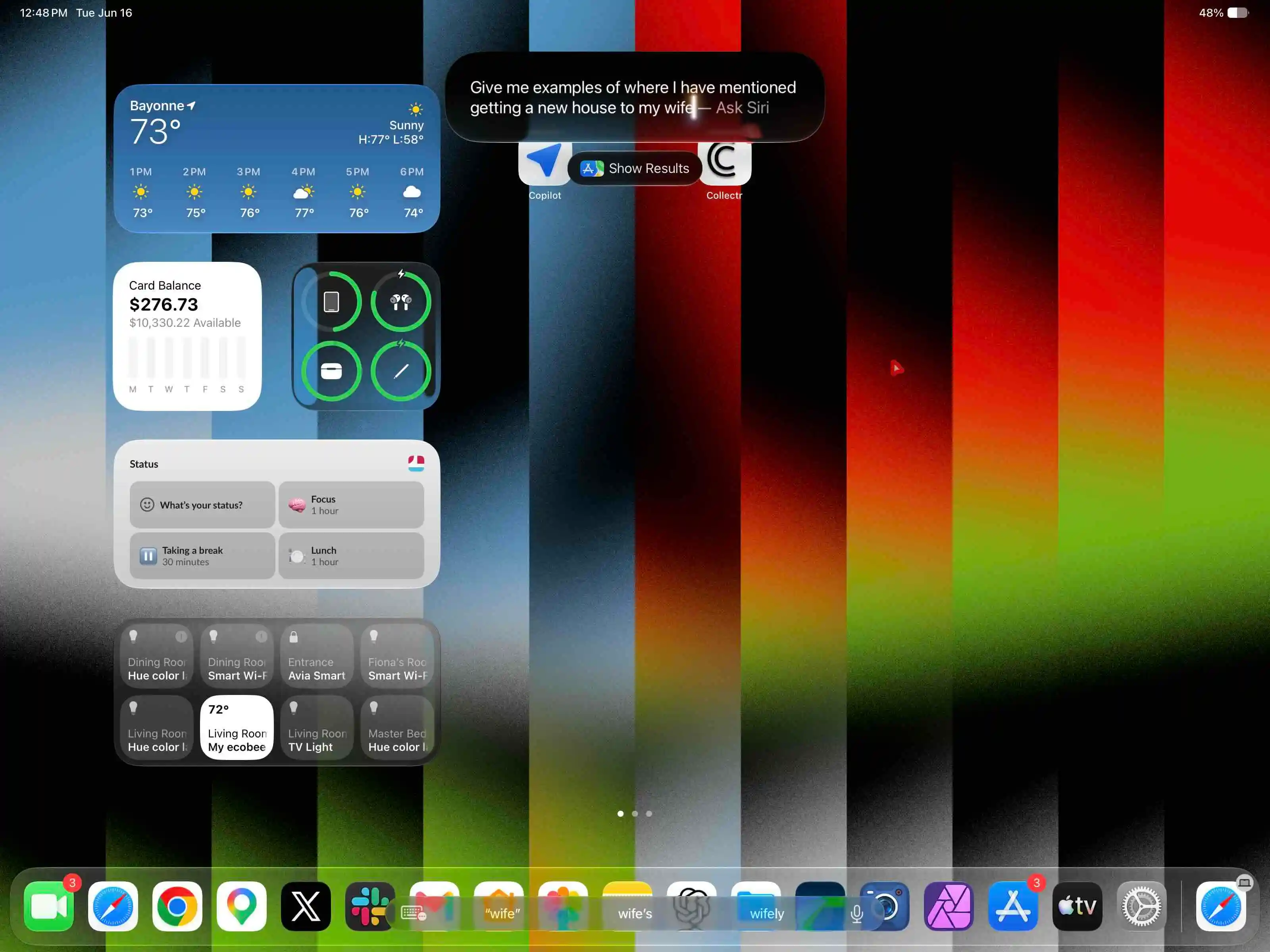
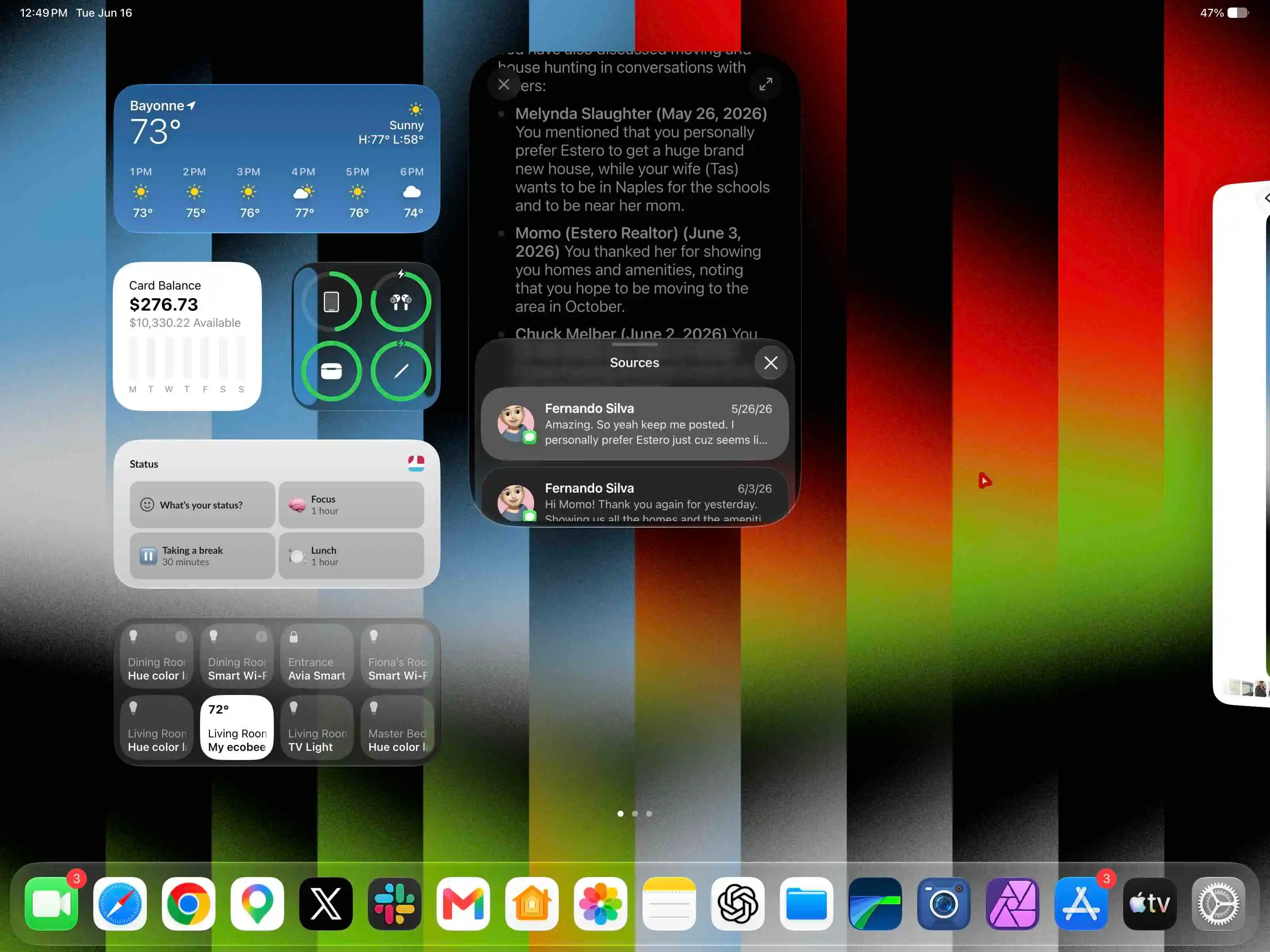
This is going to be the most impactful feature in iPadOS 27. This will remove so many steps from certain actions you need to take on your device. The best part about this is that this is just in developer beta 1, meaning this is the worst it is going to be and it can only get better from here.
Final thoughts
There are a ton of other iPadOS 27 features to explore, but I wanted to highlight some of the more impactful ones that I have been using since day one. Of course, this update is mainly about the new Siri and Apple Intelligence, but that has unlocked so many more opportunities and use cases that we are still uncovering.
What do you think of this update? Have you tried it? Are you impressed? Is it still lacking? Let’s discuss below!
Best Apple deals
- AirPods Pro 3 (Limited time low of $179)
- Paperlike Screen Protector
- M4 iPad Air (Limited time of $559)
- Magnetic USB-C Charging cable
- Best budget Magic Keyboard
- Best desk charging station 300W
- Favorite 100W USB-C Charging brick
- Best portable iPad charger


FTC: We use income earning auto affiliate links. More.


Source link


Comments